 All help articles
Prepare your site for more visitors
 Are you expecting a surge or spike in traffic to your website? Ramping up on a marketing campaign or sending a promotional link to your site on a newsletter? In order to get ready for additional traffic to your site, we’ve created some quick tips to help make your site more resilient and ready to greet your new visitors!
Table of Contents:
- The key to speedy sites: caching
- How to make sure your site is cacheable
- Disable WooCommerce® Cart Fragments 1
- For Developers: Minimize cookie usage on the front end
- Disable the Preload Cache function in WP-Rocket
- Optimize your database to remove bloated tables
- Limit WP-Admin AJAX requests
- Update PHP to the latest version
- Update your WordPress® version
- Update and clean up plugins and themes
- Avoid not recommended plugins
- Offload media files
- Run speed tests and optimize performance
- Make sure the amount of traffic is appropriate for the plan size
- If you expect a brief (24 hours or less) spike in traffic, let us know
The key to speedy sites: caching
One of the key ingredients in helping a site load fast and smooth is the ability of the site/page to cache. Caching takes a significant load off the server by creating a temporary “snapshot” of a page, then serving it from memory instead of having to process the entire layout and content from the server itself.
Caching indirectly removes large stress from the server since many visitors aren’t actually hitting the server directly and instead are being served pages from the cache.
How to make sure your site is cacheable
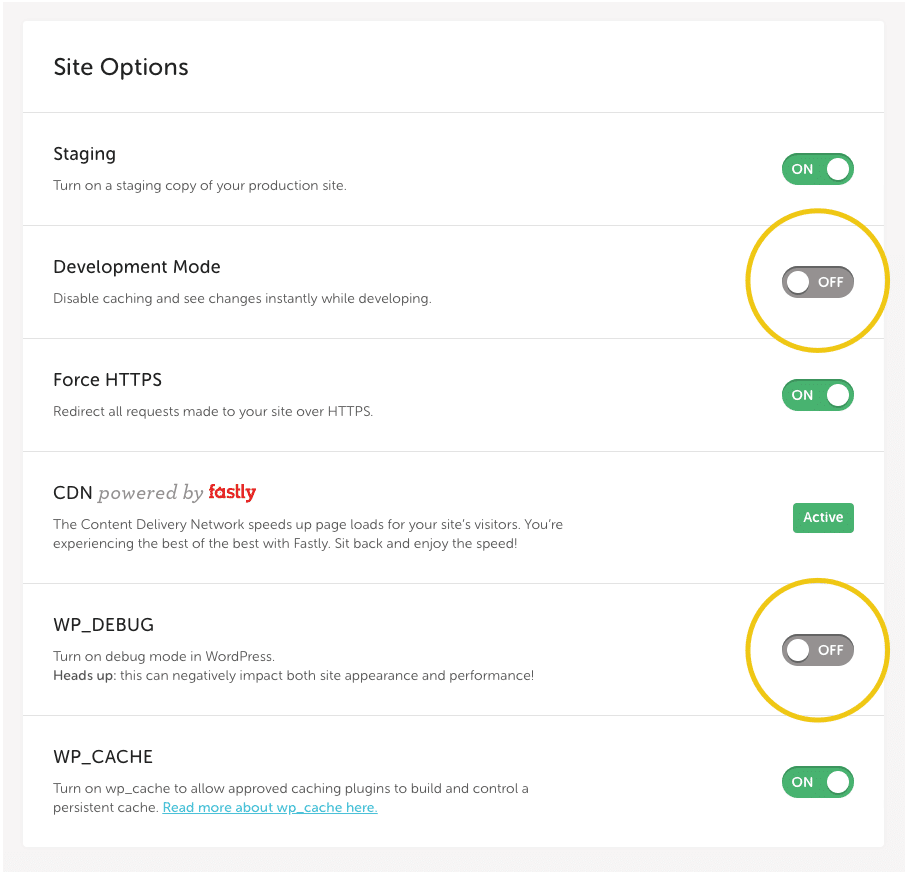
To ensure site cacheability, turn off Development Mode and WP Debug. Both of these settings are useful when you are still actively developing the site and need to see changes appear in real time. However, when these settings are enabled, all server-side caching is disabled, which will affect performance.
We suggest turning these features off when not developing the site. To check the status of these settings, go to the Advanced tab in your Flywheel dashboard.
Disable WooCommerce Cart Fragments
Slow performance and errors on WooCommerce sites are often caused by a high number of AJAX requests, as these requests are uncached. With WooCommerce installed, your theme may utilize the Cart Fragments feature to display a cart icon in the navigation menu that actively updates, depending on how many items are in the cart.
WooCommerce Cart Fragments is a script using admin-ajax to update the cart without refreshing the page.
Cart Fragments will slow down the speed of your site or break caching on pages that don’t actually require cart information. However, not every site or page needs the cart-fragment functionality. Disabling Cart Fragments will help reduce uncached requests to the server. In order to remove the calls from the page, we suggest choosing from these three options:
- Add a plugin with a cart fragmentation disabling feature, such as Disable Cart Fragments or Perfmatters. This is a preferred solution since it only disables the cart from working until it’s actually needed.
- Follow this guide to disable cart fragmentation by editing the functions.php file of your theme.
- Contact the Flywheel support team and we can put a server-level block in place. This is a last-ditch effort and should only be reached for in emergency situations, since it will also block the cart preview from working during normal situations.
For Developers: Minimize cookie usage on the front end
When set, cookies interact directly with PHP during page load in order to perform a unique action. For example, when you log into the wp-admin dashboard, a cookie is set to make sure your actions are specific to your user session.
Cookies are also set for WooCommerce sites to make sure visitors’ shopping carts are correctly attributed. In instances like these, pages should not be served from cache; each page load should be unique to the visitor.
When a page is served from cache, it’s already been generated previously by the server. If the page is cached, the cookie cannot be generated and perform its action with the page load as expected.
A cookie may only work as expected when you are logged in to the WP-Admin Dashboard. This is because logged-in user sessions specifically bypass the page cache layer and will be processed by PHP every time.
We recommend populating all the available options for the action you wish to take with HTML or PHP. Then, you can use JavaScript to select which option to load (based on the presence of the cookie). This way, the fully-formed page served by cache will still fit all scenarios, since browser-side JavaScript will determine which of the available options display.
Disable the Preload Cache function in WP-Rocket
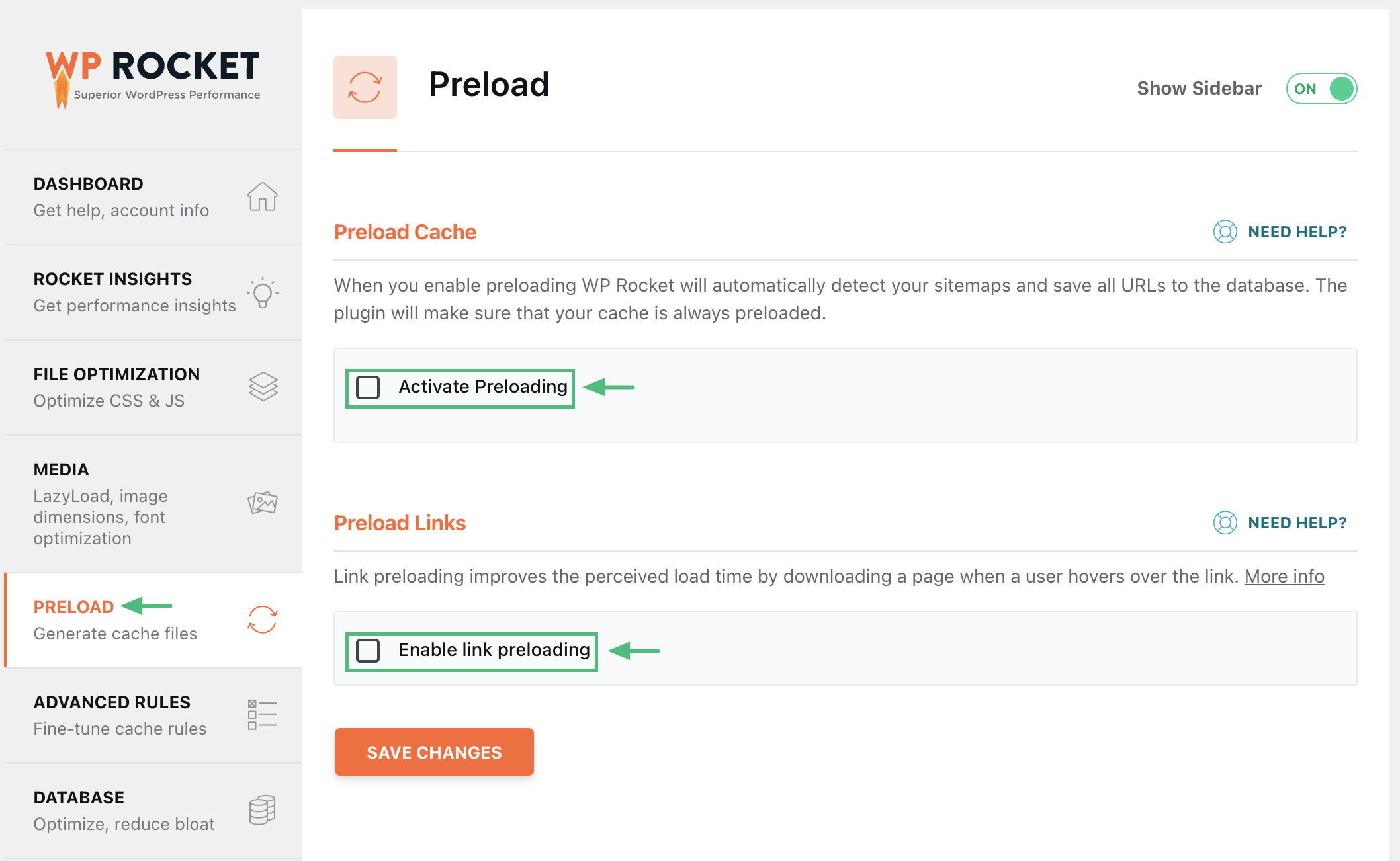
While the WP-Rocket plugin has several great features, the “Preload Cache” function is known to cause performance issues on our platform. These features “flood” the site with requests to create cached pages before a real visitor hits them, which can overwhelm server resources.
It’s a good idea to log into the admin of the site and make sure both Activate Preloading and Enable link preloading are unchecked. This ensures optimal site stability.
A Note on Other Performance Plugins
While this guide focuses on WP-Rocket, many other caching or performance plugins include similar “Preload” features. Because these features are highly resource-intensive, we generally recommend disabling them regardless of which plugin you use.
For more specific recommendations on using the WP Rocket plugin with our platform, see our full guide.
Optimize your database to remove bloated tables
Over time, your database tables can become filled with old revisions/drafts, trashed pages/posts, pingbacks, spam comment entries, old plugin data, or bad tables. Using a plugin like WP-Optimize could help clean up unneeded data in your database to help with performance.
If your site uses WooCommerce, you have the option in the plugin settings to clear both WooCommerce transients and all expired transients from WordPress® with the Clear transients and the Clear expired transients buttons.1 Transients are a standardized way to store cached data temporarily in the database.
Woo® offers more information in this article.1
Warning
Make a backup: Before altering your database, it’s always a good idea to create a backup in case anything goes awry.Limit WP-Admin AJAX requests
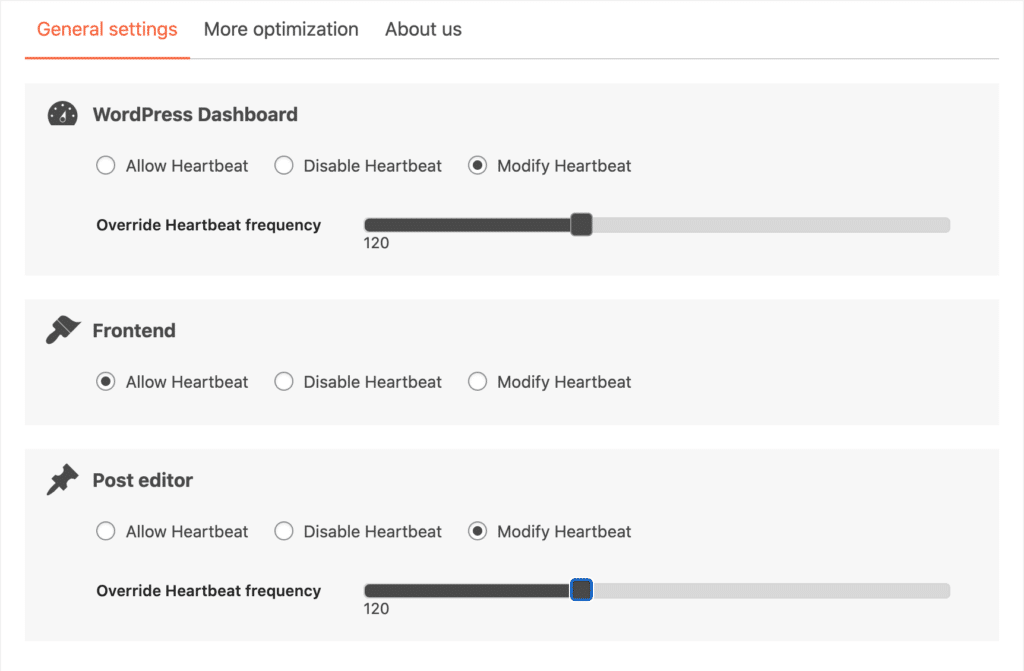
By default, AJAX requests, sometimes called heartbeat requests, are sent every 15 seconds when editing pages/posts, and every 60 seconds while logged onto the dashboard.
However, if you usually leave your WP-Admin open for long periods (for example, when you write or edit posts), there are too many wp-admin tabs open, or if there are multiple admins logged in and editing content, the AJAX requests from the API can pile up and generate high CPU usage, leading to server performance issues.
We recommend installing the plugin Heartbeat Control and utilizing it to space out those heartbeat requests. We would advise modifying the dashboard and post editor frequency to 120 seconds.
Update PHP to the latest version
Running your site on the latest available PHP version ensures optimal security, performance, and compatibility with modern WordPress features. You can check your current version and learn how to update in our PHP on Flywheel guide.
Update your WordPress® version
We recommend keeping your site on the most recent version of WordPress to take advantage of the latest speed improvements and security patches. For more details on how we handle these updates, see our article on WordPress core updates on Flywheel.
Update and clean up plugins and themes
It is always a good idea to update your plugins and themes to their latest versions for the best performance.
Additionally, make sure to completely remove any that are no longer needed. Unused code can still leave behind data in the wp_options table of the database, resulting in unnecessary queries that slow down your site.
Avoid not recommended plugins
While most of the thousands of WordPress plugins available will work great on Flywheel, there are a few categories of plugins we generally recommend avoiding. These typically include plugins that duplicate functionality already provided by the Flywheel platform, like backup and caching plugins, or those known to cause significant performance and security issues.
For a full list of these plugins and our recommended alternatives, check out our Not Recommended Plugins guide.
Offload media files
Large media files like videos, high-resolution images, and audio can consume significant bandwidth and slow down page loads. We often recommend using a tool like WP Offload Media to move these files to external storage. For more tips on reducing your site’s weight, see our best practices to lower bandwidth.
Run speed tests and optimize performance
Once your server-side settings are dialed in, it is a great idea to analyze how your site performs for actual visitors. You can use tools like Google PageSpeed Insights or GTmetrix to identify front-end bottlenecks. For a deep dive into interpreting these results, refer to our Flywheel guide to page speed tests.
Make sure the amount of traffic is appropriate for the plan size
To make sure your site performs well, make sure the expected traffic is within your plan limits. Plan limits can be found on our pricing page.
For any questions regarding plan options, feel free to chat with our sales team directly from the pricing page!
To see which pricing plan your site is currently on, you can click on the Manage billing link from your Flywheel dashboard.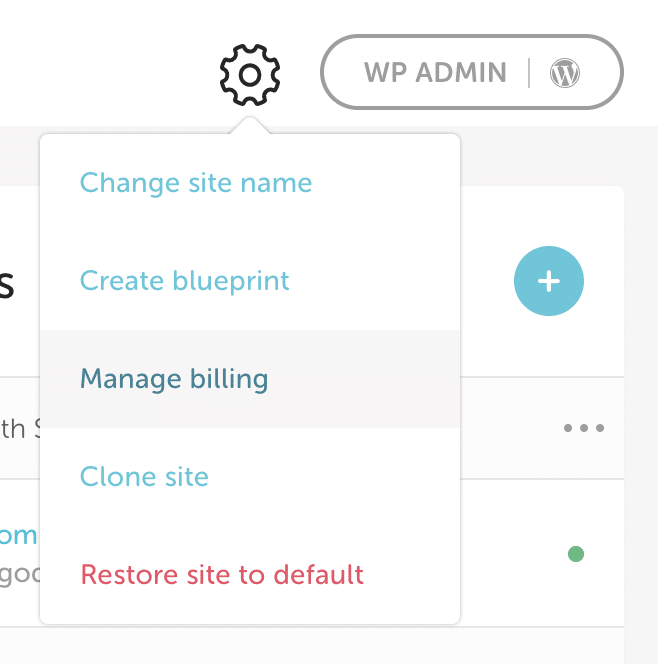
You can also view your current site visits by visiting the stats page.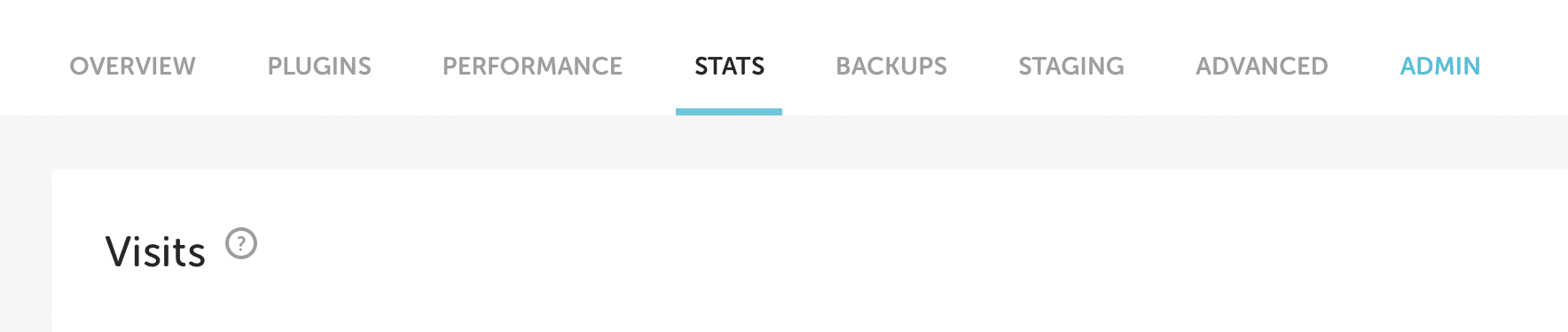
Note
For more information on how Flywheel counts a visit, check out this help doc.If you expect a brief (24 hours or less) spike in traffic, let us know
We’re happy to help get your site prepared for the expected traffic influx! In this case, we’ll just need some basic details to help us assess the resource needs.
Contact our support team and provide details such as:
- Approximately how much traffic will we see during this traffic spike? If you can provide a per-hour breakdown that would be even more helpful!
- What will these visitors’ activity likely look like? Will they be logging in, filling out forms, submitting orders/donations? Specific pages that you expect them to navigate to will be helpful.
- Will these visitors be hitting the site directly or will they be following a link that is using a tracking ID (ex. example.com/?ga-1239324)?
Please reach out to us at least 3-4 days in advance of the anticipated traffic spike and we can provide you with the best next steps, or alternative solutions, to make sure your site can handle the traffic!
Need help?
If you have any questions our Happiness Engineers are here to help!
Getting Started
New to Flywheel? Start here, we've got all the information you'll need to get started and launch your first site!
View all
Account Management
Learn all about managing your Flywheel user account, Teams and integrations.
View all
Features
Flywheel hosting plans include a ton of great features. Learn about how to get a free SSL certificate, set up a staging site, and more!
View all
Platform Info
All the server and setting info you'll need to help you get the most out of your Flywheel hosting plan!
View all
Site Management
Tips and tricks for managing your sites on Flywheel, including going live, troubleshooting issues and migrating or cloning sites.
View all
Growth Suite
Learn more about Growth Suite, our all-in-one solution for freelancers and agencies to grow more quickly and predictably.
Getting started with Growth Suite
Growth Suite: What are invoice statuses?
Growth Suite: What do client emails look like?
Managed Plugin Updates
Learn more about Managed Plugin Updates, and how you can keep your sites up to date, and extra safe.
-
Restoring Plugin and Theme Management on Flywheel
-
Managed Plugin Updates: Database upgrades
-
Managed Plugin Updates: Pause plugin updates
Local
View the Local help docs

Looking for a logo?
We can help! Check out our Brand Resources page for links to all of our brand assets.
Brand Resources