 All help articles
Wordfence + Flywheel
We often recommend installing the third-party Wordfence plugin because it provides additional security benefits that complement the protection we already offer at Flywheel.
The vast number of settings and options within Wordfence can be overwhelming, so this guide covers some of the plugin’s most notable features, along with a few tips and tricks.
Most notable settings:
Other settings to look out for:
Wordfence Scan
The Wordfence Scan tool is a key feature of the plugin which enables you to thoroughly analyze the site’s file directory and quickly identify any files or code that look suspicious or potentially malicious. While incredibly powerful, it’s important to be aware that the scanner may report ‘false positives’ – files flagged as suspicious that are actually legitimate. Below are examples of the most common false positive you’ll encounter on the Flywheel platform:
- wp-admin/includes/file.php
- wp-admin/includes/upgrade.php
- wp-settings.php
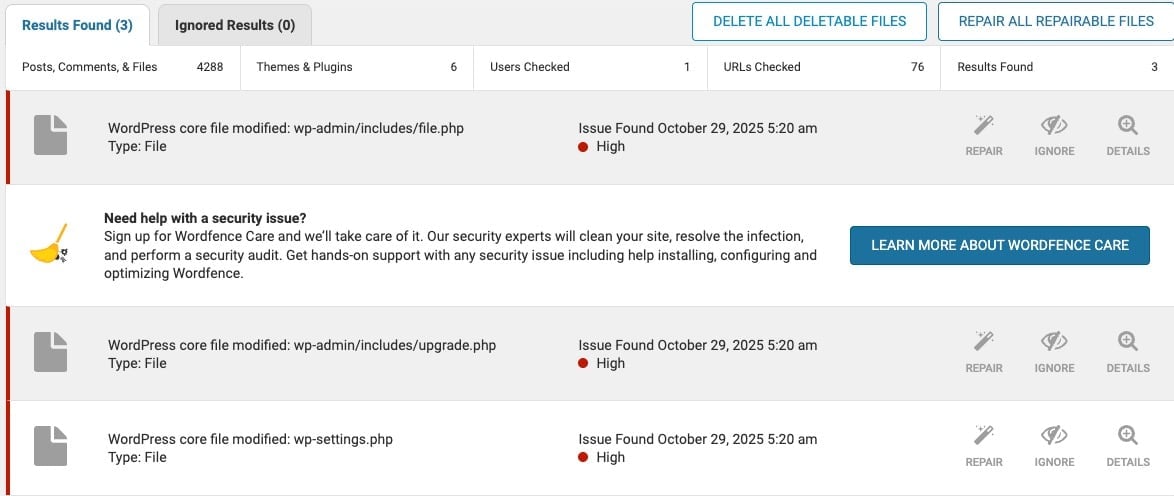
While these results appear to be critical issues, they are all false positives and can be disregarded (select Ignore > Always ignore). These warnings relate to specific WordPress® core files which, for security purposes, are intentionally locked down on our platform. This security measure causes Wordfence to mistakenly flag them as ‘modified’. For more information on why we lock the core files down, you can refer to this document.
The scanner does have several modes, but sticking with the “Standard” type will be sufficient for flagging any unusual code. If you find any potentially malicious files, you can contact our support team and we’ll be able to run an in-depth malware scan. Please refer to our Malware Cleanup Policy for more information.
Web Application Firewall Status
The Wordfence WAF (Web Application Firewall) is the plugin’s key security features. It uses an extensive set of rules to help block malicious traffic and protect your site from common threats. Although runs as a background process, it’s important to understand that the WAF can sometimes conflict with other normal site functions.
A common example would be experiencing 403 errors when trying to save changes in a page builder, such as Elementor. In these cases, the firewall may mistakenly flag legitimate requests as suspicious. To resolve this, switch the firewall to Learning Mode – this allows Wordfence to recognize these safe actions and reduce false positives.
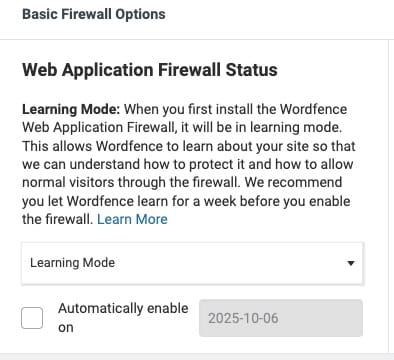
The WAF includes multiple layers and advanced configurations, making it quite a complex system. For a more detailed breakdown of how it works, we recommend reviewing Wordfence’s official WAF documentation.
IP Allowlisting
We know that the Wordfence WAF can occasionally flag legitimate activity as suspicious, but how do we fix this issue when it happens? IP allowlisting (or “whitelisting”) is a great solution, where an IP (or subset of IPs) can be excluded from the firewall rules. This tells Wordfence that traffic from that IP is safe and should not be restricted by the firewall.
This can be accessed via Firewall > Manage firewall > Allowlisted IP addresses that bypass all rules.
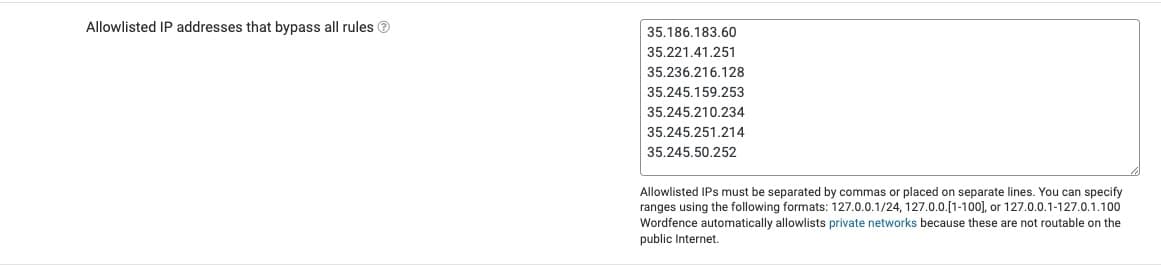
This example is a subset IPs used by an entity, which will no longer be impeded by the WAF.
Rate Limiting
Rate Limiting allows you to control how many requests a specific user or webcrawler can make to the site within a set timeframe (for example: per minute). It’s a powerful security feature, but it should be noted that it’s an advanced setting, so it isn’t necessary for every site.
If you do intend on using a rate limiting feature, our recommendation is to set this up via Cloudflare instead. This is because Cloudflare handles rate limiting at the network level (outside your hosting environment) so it won’t consume your site’s server resources or affect site performance.
If you’re unsure how to configure rate limiting or determine appropriate thresholds, it’s best to consult with a developer. Each site has unique traffic patterns and requirements, so settings should be tailored accordingly.
Live Traffic Analysis
The Real-Time Live Traffic feature in Wordfence functions as an access log that you can be view directly from within the Wordfence dashboard. It will be set to “only log security-related traffic” by default, and our recommendation would be to keep this setting. Changing this to “all traffic” will create an unfiltered stream of access logs, quickly taking a heavy toll on your site’s performance.
For a more efficient approach, we suggest using a traffic analysis tool from Cloudflare instead. Cloudflare processes this data externally, meaning your site’s server doesn’t bear the load of logging and analysing traffic in real time.
Login Security
Wordfence also includes several Login Security features, such as 2FA, reCAPTCHA and even a WooCommerce integration. These are beneficial for eCommerce and membership sites, or any site that allows users to log in through a user portal. If you are already using separate plugins to take care of these functions, there’s no need to switch them over to Wordfence. It’s best to avoid duplicating functionality across multiple plugins as this can lead to conflicts or unnecessary complexity.
Country Blocking (Premium Users Only)
Country blocking is a feature available to users with a Wordfence Premium licence. It allows you to restrict access to your site from specific countries.
This feature should be used with caution, as it can unintentionally block legitimate visitors, including search engine crawlers or international traffic. Before enabling country blocking, consider whether it’s necessary for your security needs, and review your analytics to ensure you’re not excluding valid traffic.
Need help?
If you have any questions our Happiness Engineers are here to help!
Getting Started
New to Flywheel? Start here, we've got all the information you'll need to get started and launch your first site!
View all
Account Management
Learn all about managing your Flywheel user account, Teams and integrations.
View all
Features
Flywheel hosting plans include a ton of great features. Learn about how to get a free SSL certificate, set up a staging site, and more!
View all
Platform Info
All the server and setting info you'll need to help you get the most out of your Flywheel hosting plan!
View all
Site Management
Tips and tricks for managing your sites on Flywheel, including going live, troubleshooting issues and migrating or cloning sites.
View all
Growth Suite
Learn more about Growth Suite, our all-in-one solution for freelancers and agencies to grow more quickly and predictably.
Getting started with Growth Suite
Growth Suite: What are invoice statuses?
Growth Suite: What do client emails look like?
Managed Plugin Updates
Learn more about Managed Plugin Updates, and how you can keep your sites up to date, and extra safe.
-
Restoring Plugin and Theme Management on Flywheel
-
Managed Plugin Updates: Database upgrades
-
Managed Plugin Updates: Pause plugin updates
Local
View the Local help docs

Looking for a logo?
We can help! Check out our Brand Resources page for links to all of our brand assets.
Brand Resources